I Turned Obsidian Into My AI Personal Agent OS
For years I have been searching for the holy grail. An all in one app where I operate from daily.
There are two camps of people in this world:
- The people who want an dedicated app for different things (tasks app, documents, etc.)
- The people who want an all in one app where they don’t have to swtich.
I am firmly in camp two.
One place where my notes live, my projects live, my files live, my tasks live, and now, where my AI agent can actually work with me.
And this became even more evident once I started using AI. Because all my work happens in a chat window with AI- but all my work, thinking & documents lives in other systems. So i’m constantly switching.
Chatting with Claude in one window, opening files somewhere else, copying things across, saving outputs, pulling documents back in, and generally doing a lot of tiny annoying tool-switching that makes the whole thing feel more clunky than it should.
And I just kept thinking: I want the AI to be where the work is.
Why I came back to Obsidian
At first I tried apps like VS Code and Cursor, because they do combine your documents with a chat.
And there were things I liked about that.
I liked that my files could sit right next to the conversation I was having with AI. I liked that Claude Code could work directly with the folder I was in. I liked that it felt more connected than using Claude in a separate desktop app.
What I did not like was looking at raw markdown and a bunch of features that I never used. I also like nice looking tools.
If I am going to stare at something all day, I want it to feel good to use. Apparently this is a strong value of mine now.
That brought me back to Obsidian, surprisingly.
Obsidian is a great markdown editor. And AI love markdown. And with a few good plugins I turned it into an all in one agentic operating system where both things live:
- Your Knowledge Base
- Your Agent Operating System
I walk through the full setup in this week’s video, including the vault structure, the Hyo Agent plugin I created, and the other plugins that make Obsidian feel like an actual workspace instead of just a pile of markdown files.
Now before I get into it, let me talk about the elephant in the room - do I still use Tana. And the answer is yes. But I also want to be open to exploring different ways that we can implement this kind of agentic operating system. Because I know better than anyone, that there is never one tool that fits everyone. And in saying this I’ll be sharing about the new Tana soon and how you can use that as an all in one operating system.
How I set up Obsidian as my agentic operating system
The first thing I had to work out was the file and folder structure. This sounds weird to say but I don’t think in files and folders. Because I’ve used note taking apps for years, I just use notes. So I had to think about how to make files and folders work for me and I think I stumbled on something good.
Because I have used Tana for so long I automatically think in types. In Tana these are called Supertags. So every note is not just a note, it is a type of note.
- Project
- Meeting
- People
- Quick Note
- Doc
So carrying this logic over, I decided to keep the same kind of mental model. And created a folder for each type of note. So all my projects live in one project folder, all my meetings live in a meetings folder.
This just make it so simple. I don’t have to think about organisation. All I do is think - what type of note is this and I put it in that folder.
There are a few plugins that I list below that make this even easier - but two worth mentioning are Notebook Navigator and Templater.
Notebook Navigator allow you to view your files in an apple notes style list. So it feels like you are working with notes and note files. And templater allows you to set a note template per folder. So I don’t have to think about the properties I need when creating a new note type.
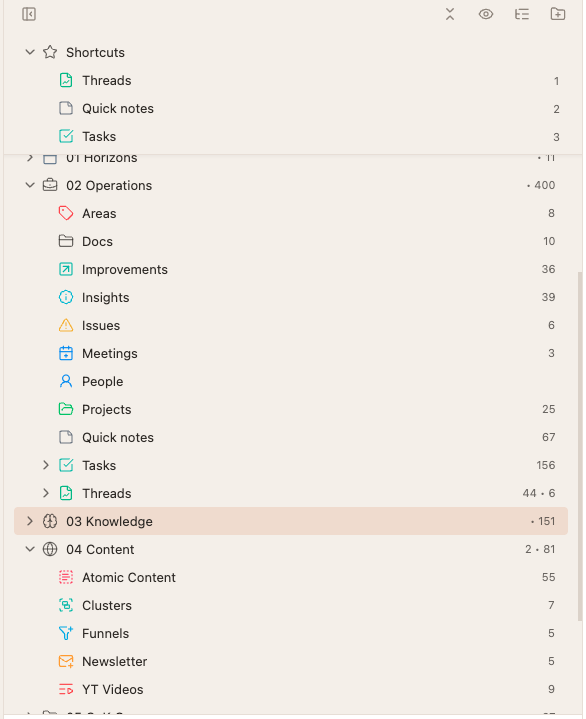
If you’ve ever looked at Obsidian and wondered - how do I structure this? You might want to try this type method.
The plugin that lets me chat with AI inside the vault
The second thing I needed was a way to actually talk to my AI from inside Obsidian.
There are a lot of good plugin options out there. But a lot of them were just terminals inside obsidian. And I don’t want to use the terminal.
So I created my own plugin! It’s called Hyo Agent and allows you to chat with Claude Code in Obisidian in a normal, nice looking chat window.
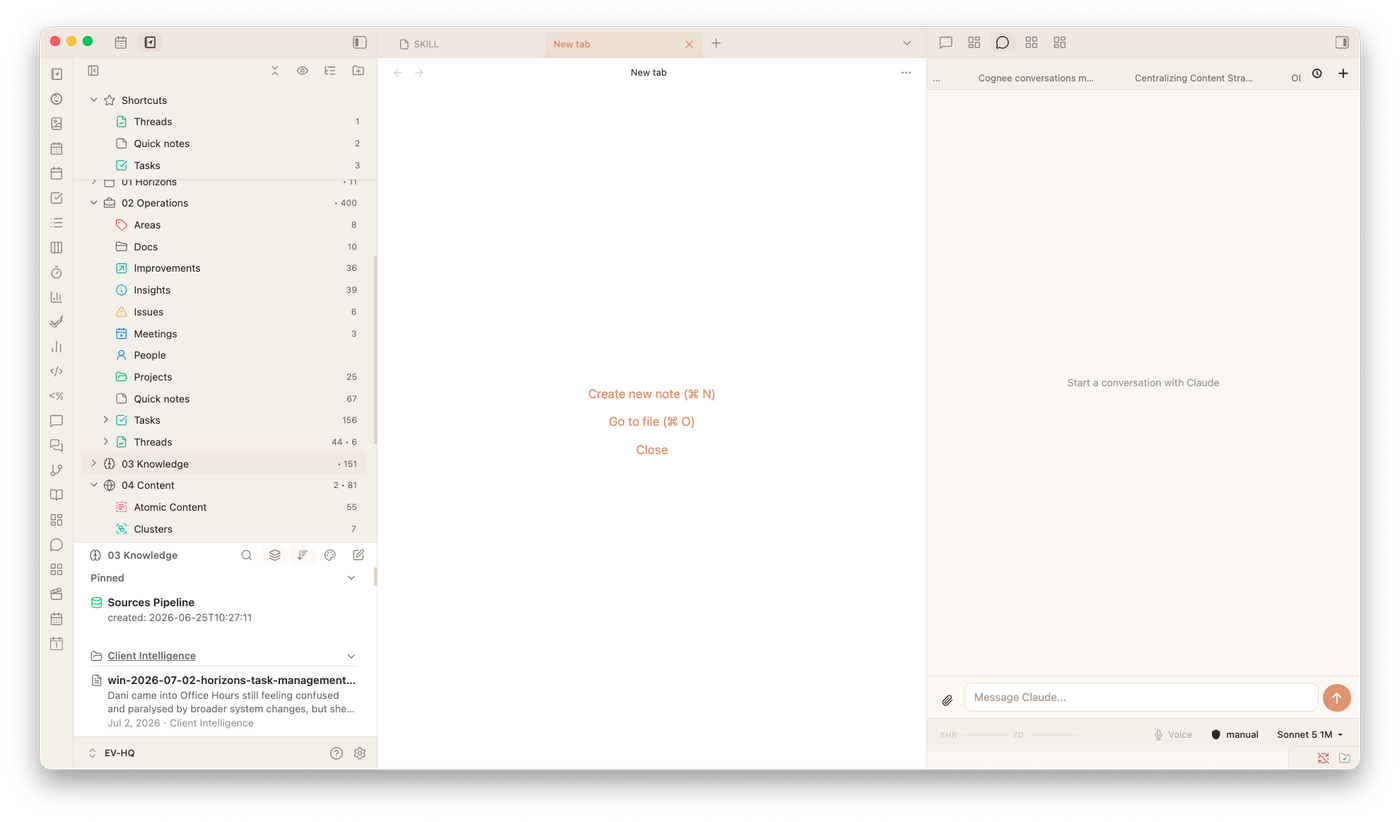
And because I built it I was able to add some cool features:
- Switch between different agents
- Have multiple chat sessions open at one time
- Monitor token usage and the context window
- Voice mode so I can talk to my agents and they talk back.
It’s kind of incredible to even say that I created a plugin. But here we are. I’ve made it available if you want to try it out. I think it’s just SO good being able to chat right next to me notes.
https://github.com/evielync/hyo-claude-code-obsidian-plugin
(You’ll have to install it via the BRAT plugin as it’s not in the community list yet)
The extra plugins that make Obsidian usable day to day
The Hyo Agent plugin solves the AI piece.
But I also needed Obsidian to feel like somewhere I actually wanted to spend my day. There are just four plugins that made Obsidian way more of a joy to use.
Notebook Navigator makes Obsidian feel more like Apple Notes. Instead of just staring at folders, I can click into a folder and see the notes inside it in a much nicer way. I can sort by date edited, pin important notes, search quickly, and generally not feel like I am fighting the file system all day.
This is probably my favourite Obsidian plugin that I have found so far and I’m not afraid to say I’m an evangelist for it!
Templater means I do not start with a blank note every time.
Because every folder in my system represents a type of thing, I can have a template automatically applied when I create a new note in that folder. A new project gets the project structure. A new thread gets the thread structure. A new meeting gets the meeting structure.
Templater applies these templates to every note in the folder. So I don’t even think about it anymore.
Metadata Menu gives me better fields and properties.
This is what lets me treat notes more like structured objects. Because I am so used to working in Tana where every Supertag has structured fields - I wanted a way to replicate that. And Metadata Menu does it perfectly. Projects can connect to areas. Tasks can connect to projects. Notes can have statuses and dropdowns. It makes the vault feel less like a folder system and more like a proper operating system.
Task Notes lets me manage tasks inside Obsidian.
I can create tasks with statuses, due dates, scheduled dates, recurring settings, and project connections. Which means my agent can see the work, not just the thinking.
And even if you don’t want to put your whole knowledge base in Obsidian (for instance if you use Tana or Notion or Capacities or something else) it’s still an excellent agent operating system (especially if you use Hyo 😊) where you can operate your AI Agent from.
PS If you want to go all in on building a personal agent operating system here are a couple of ways I can help
- Turn AI into the best employee you will ever hire - your Chief of Staff. Imagine waking up each morning and your inbox is organised, your day is prepped, you have notes on all the meetings you have for the day… that is what we build in the Chief of Staff Course. The support you need to do your best work.
- And if you want to go all in with a bunch of other solo operators building their AI Operating Systems then check out my College of Knowledge Community. Every month get access to toolkits, systems, workshops & resources to help you build your business with AI.

Comments